

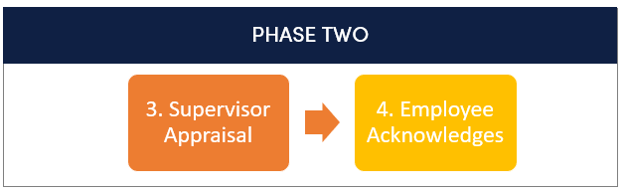
1. Log in to ePerformance.
2. In Action Items, click Item entitled “Employee Acknowledges Appraisal”.
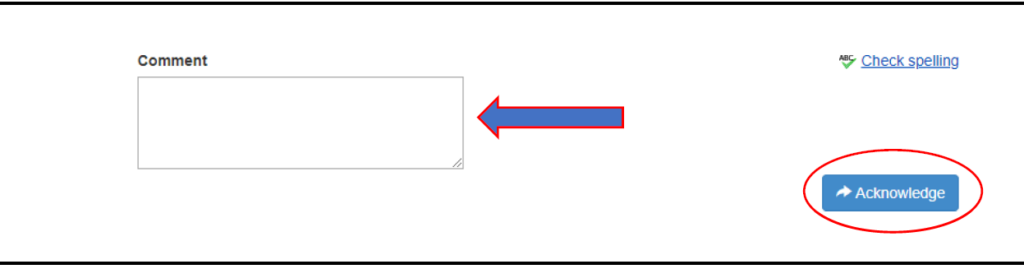
3. Use Comment section to notate any highlights to make a matter of record.
4. Click one of the following:
Acknowledge: You affirm that you have met with your employee. This will move the appraisal to the employee for acknowledgement.
Return: If during the Appraisal Meeting it’s determined changes are warranted to the Appraisal, clicking the ‘Return’ button will send the Appraisal back to the immediate supervisor.
1. Log in to ePerformance.
2. In Action Items

3. To the right is your Overall Rating and other information. The blue box contains information about acknowledgement and your grievance rights. Review the evaluation.

4. Click Acknowledge or Dispute (we encourage employees to include comments if the performance plans are disputed) when you are done reviewing your performance plan information.