

Welcome
ePerformance is the program we use to document and complete Performance Management. It is part of SpartanTalent(PeopleAdmin).
Log in
Log in to SpartanTalent (PeopleAdmin) by clicking here. Log in using your UNCG username and password.

If it does not open directly to ePerformance, click the ellipse at the top left and select “ePerformance” from the menu.

MAIN SITE
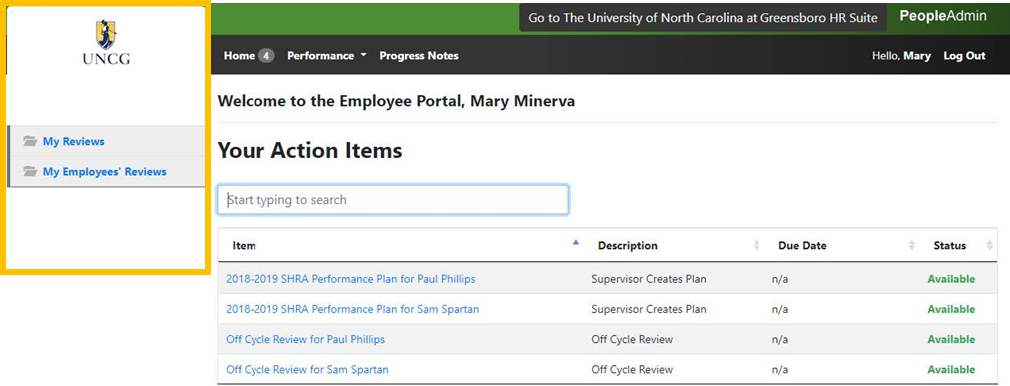
To return to the SpartanTalent ePerformance Management site, click the ‘Go to the University of North Carolina at Greensboro HR Suite’ button in the top right- hand corner.
LEFT MENU
Click My Reviews to access your individual reviews.
Supervisors will also see My Employees’ Reviews; click to access the Reviews Dashboard.
Top Menu
Click Home to return from other screens. The number shows how many Action Items you have.
Click Performance to access your individual reviews or your employees’ reviews (supervisors only) on the Reviews Dashboard. This is a duplicate of the left menu.
Click Progress Notes opens any notes made during the year.
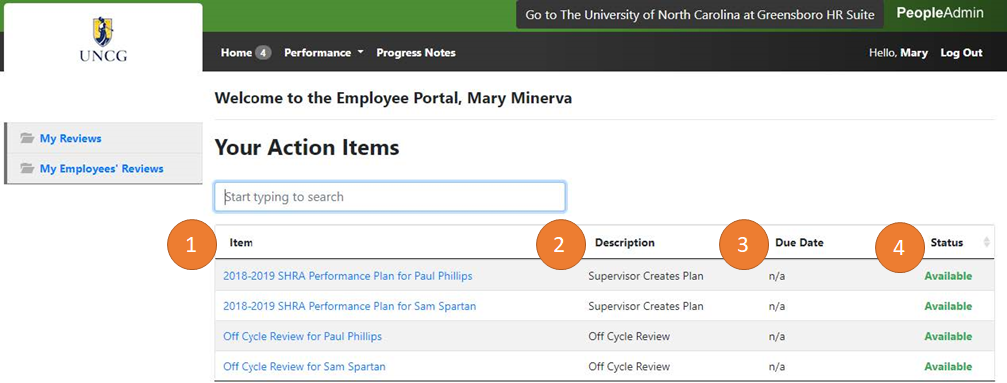
YOUR ACTION ITEMS
1. Item – the review type (Annual, Off Cycle, etc.) and name of employee. Click on an item to begin completing the current action; once complete, it will not show under Your Action Items.
2. Description – current step in the workflow that describes the required action.
3. Due date – date the current step of the workflow in the description is due.
4. Status – shows if the current workflow step is available to complete, past due, etc.
Access through the left menu by clicking “My Employees’ Reviews”. The default view is the current performance cycle.This dashboard shows you current and past performance review cycles.
Access through the left menu by clicking “My Employees’ Reviews”. The default view is the current performance cycle.
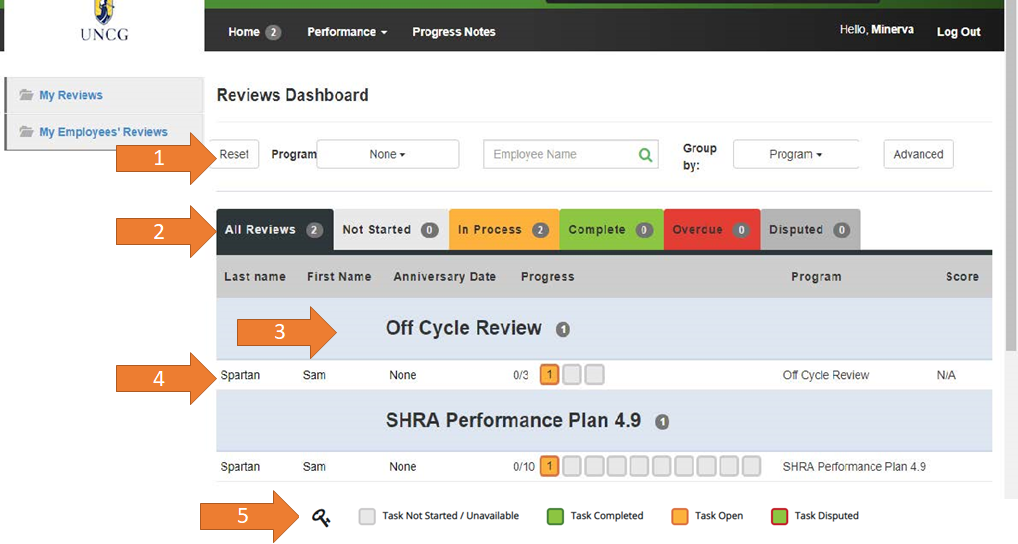
1. Filter– allows you to sort by program, search for an employee, or group by supervisor, reporting unit, etc. Click Advanced to select “Closed” to view past reviews.
2. Status tabs– click to view plans at various stages in the workflow.
3. Various current programs – you are owner of those in blue
4. Progress blocks– tells which workflow step the employee is on. Hover over the colored blocks to see description and owner for each.
5. Progress key– explains what each Progress bar color represents.
This shows past and current performance review cycles and actions documented in the Spartan Talent ePerformance system.
Access by clicking “My Reviews” in the left menu.
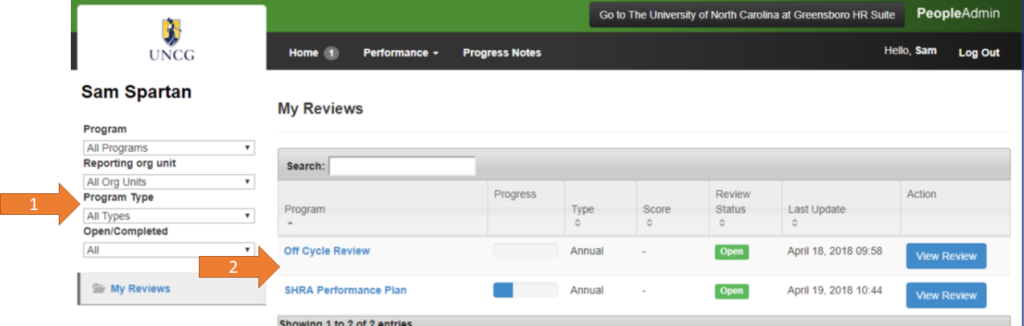
1. Sort your reviews using different fields.
2. List of various plans and reviews; Click View Review to open.
When you click View Review from the My Reviews Dashboard (see above), you will open the Overview Screen.
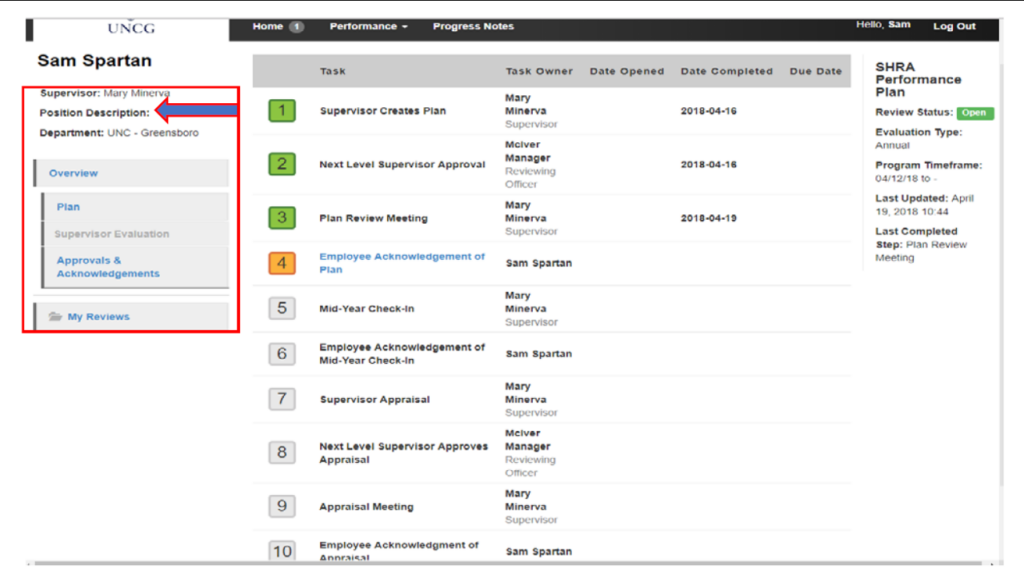
This shows you:
Tasks – you are the Owner for tasks in blue (#4 in example)
Task Owner
Date Opened
Date Completed
Date Due
In left menu:
Job Description – click to open
Open performance plan actions – Plan, Supervisor Evaluation, Approvals & Acknowledgements