ATTENTION: Progress Notes are not intended to serve as a formal disciplinary action. They should only provide documentation of performance-related issues and/or discussions. Formal disciplinary action must be initiated outside of the ePerformance system and with the involvement of your Human Resources Business Partner.
SUPERVISORS START HERE:
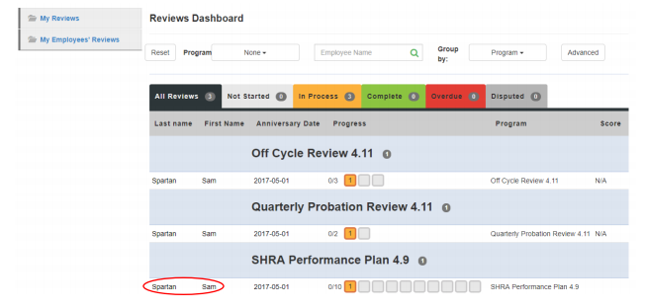
1. Click on My Employees’ Reviews in the left menu.
2. Click the employee’s name.
Go to Step 4.
EMPLOYEES START HERE:
3. Click Progress Notes in the top menu.
Go to Step 4.

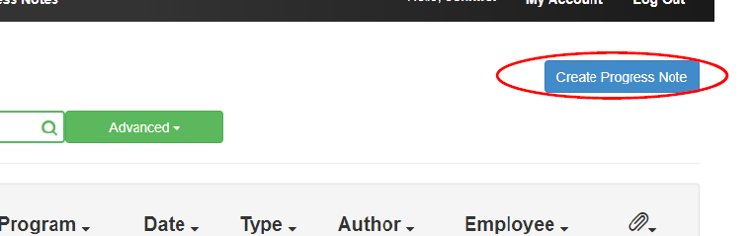
4. Click Create Progress Note.
5. In the popup, complete the fields:
Program: EHRA or SHRA.
Employee: (for supervisors) only one employee can be chosen at a time, so if you are entering progress notes for an entire team, they will be done individually.
Type: use the drop down to select.
Title: so you can easily identify (great job on…, thanks for the help on…, etc.)
Comments: this where you enter your feedback.
6. Click on the Share this Progress Note to allow your employee or supervisor to see what you have entered. Otherwise, it will not be shared.
7. Add any Attachments.
8. Click Create to save the note.

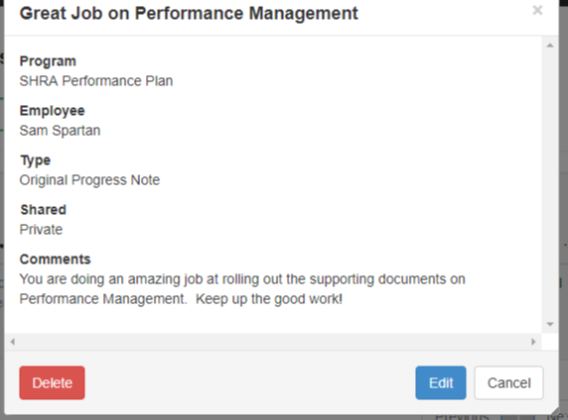
- Click Progress Notes in the top menu.
- Select the note.
- Click:
Delete to remove the note.
Edit to amend the note